

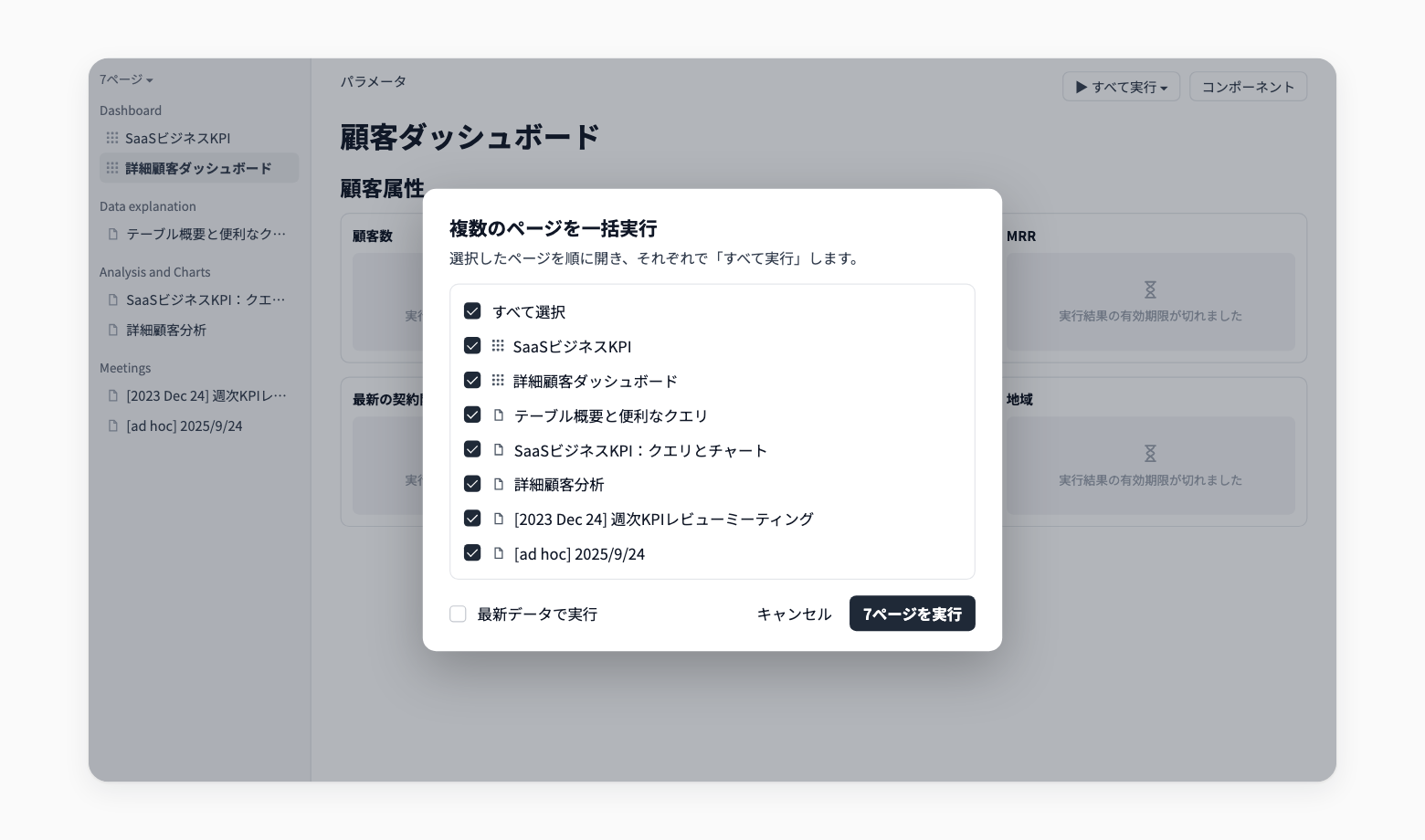
Run Multiple Notebook Pages and Bulk Publish Changes
You can now run multiple pages of a notebook at once. You can also apply notebook changes to all of your published reports, public links, and signed embeds in one go.
When you refresh a notebook with many pages or need to push the same change to several destinations, you no longer have to do it one by one.
Key features
Run multiple pages at once: From the Run all menu, choose Run multiple pages at once..., select pages, and run them in order. Turn on Run with fresh data to run without using the cache
Track progress and errors in one list: Each page shows a status such as Running, Done, or the number of errors. Jump from an error message straight to the SQL block or chart that failed
Bulk publish changes: In the Report, Public link, and Signed embed tabs of the share panel, choose Bulk publish changes to apply notebook changes to everything that is published. Each destination keeps its settings
See what changed and when it was last published: Each destination shows Changed or No changes along with its last published time, so you can pick the ones to publish. Expired public links can also be selected and republished to make them viewable again
Example use cases
At the start of the month, run every page of a monthly reporting notebook with fresh data and fix only the blocks that failed
After updating a metric definition in a notebook, apply the change to all reports and embeds built from it at once
Republish an expired public link without changing its settings
Related documentation
Availability
Like Run all, running multiple pages requires edit access to the notebook. Bulk publishing requires publish permission on the notebook. Reports and signed embeds may not be available depending on your contract.
Bulk publishing does not create new destinations or change their settings. To change settings, use Publish changes on each destination.