

Branch Conversations and Use Voice Input with Codatum Agent
You can now branch a conversation with Codatum Agent into a new session from any point. Codatum Agent also now supports voice input, and you can mention notebook pages to point it at a specific page.
Key features
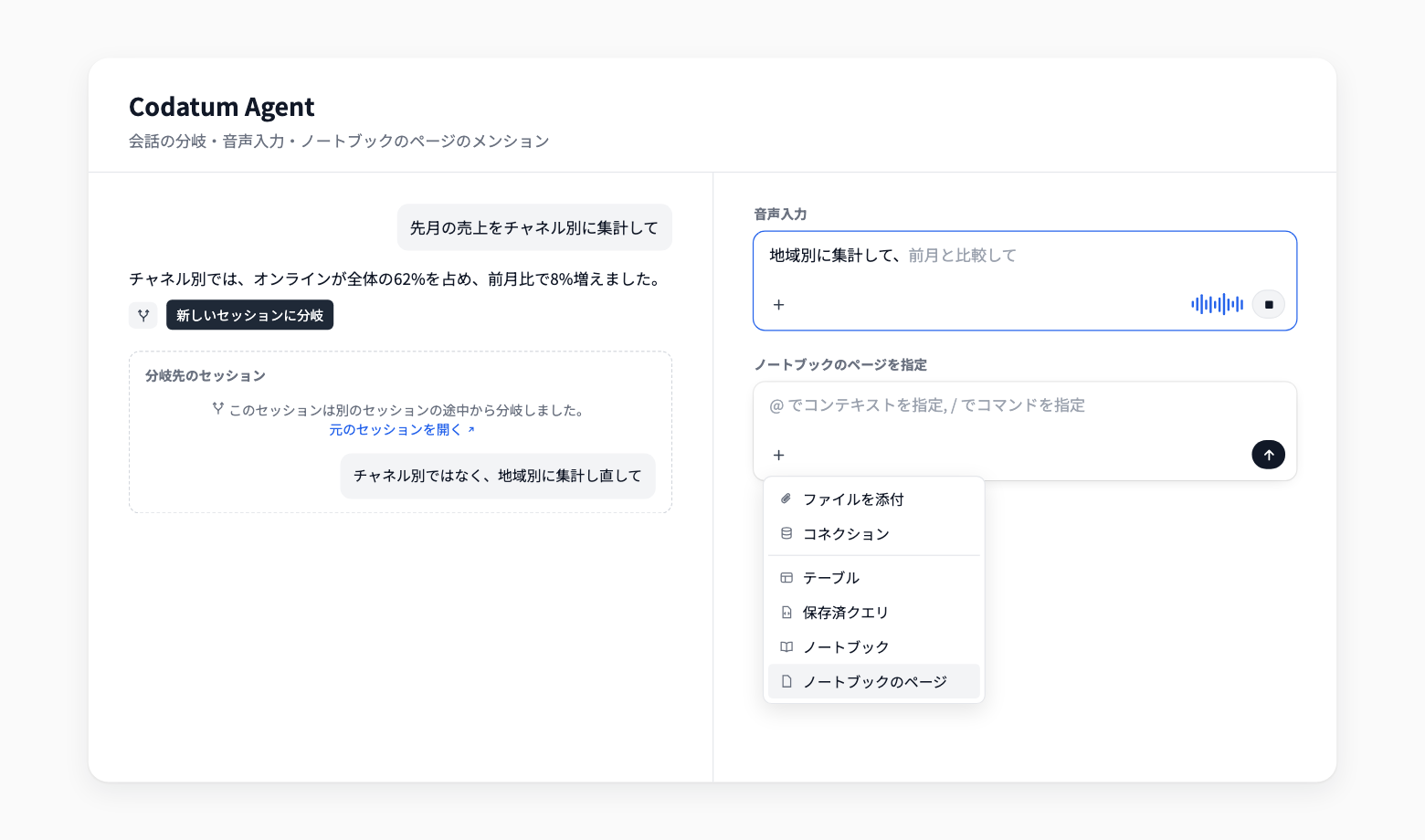
Branch a conversation: Choose Branch into a new session on one of your messages or at the end of a completed response to start a new session with a copy of the conversation up to that point. The original session stays as it is, so you can freely try a different instruction
What carries over: Messages up to the branch point, tool results, attachments, charts and tables in messages, and Todos. Session settings such as the connection, AI profile, and approval mode also carry over
Voice input: When the input is empty, click Voice input (the microphone icon) and speak. Recognized text goes into the input, so you can review it before sending
Mention notebook pages: While a notebook is open, choose Notebook Page from
or the+menu to point Codatum Agent at a specific page
Example use cases
Midway through an analysis, branch the conversation to try a different breakdown while keeping the original
Describe an idea for an analysis by speaking instead of typing
In a notebook with many pages, ask Codatum Agent to review the charts on a specific page
Related documentation
Availability
Only the user who created a session can branch it. Shared sessions cannot be branched. With this change, the resend and edit buttons on messages have been replaced by branching.
Voice input is off by default. A workspace owner can turn on Voice input in AI feature settings under workspace settings. Audio is sent to an external speech recognition service to convert it to text and is not stored by Codatum. Each recording can last up to 4 minutes, and the language follows your account language setting (Japanese or English).